Mintt Instafeed offers different layouts to display Instagram posts on your Shopify store, from classic grids and sliders to automated, conversion-focused widgets.
Explore the available layouts below and click on any option to learn more about its features and how it works.
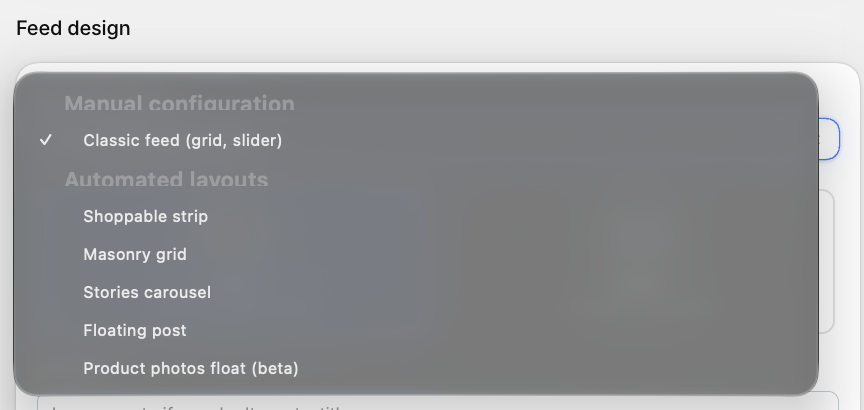
| Layout | Type | Best for |
|---|---|---|
| Grid | Manual | Displaying multiple posts in a classic layout |
| Slider | Manual | Saving vertical space |
| Shoppable strip | Automated | Showcasing products and encouraging purchases |
| Masonry grid | Automated | Creating a more dynamic, editorial-looking feed |
| Stories carousel | Automated | Displaying content in a Stories-style format |
| Floating post | Automated | Highlighting a specific post or promotion |
| Product photos float (beta) | Automated | Showing tagged photos of a product on its page |
All display options are available on all plans.
How to change your feed layout
Go to Shopify > Apps > Instafeed.
Under Feed design, open Storefront layout.
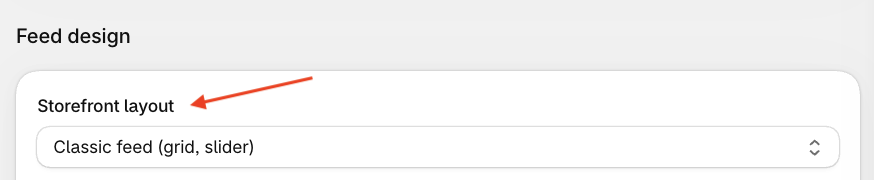
Select your preferred layout from the available options.
Click Save.
Manual configuration
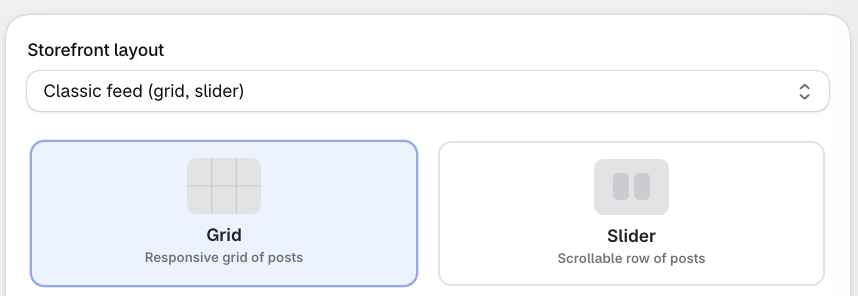
Grid
A responsive grid of posts. This works well in most store placements: homepage sections, dedicated Instagram pages, and product pages. The number of columns and rows adjusts based on your settings and the screen size of your visitor.
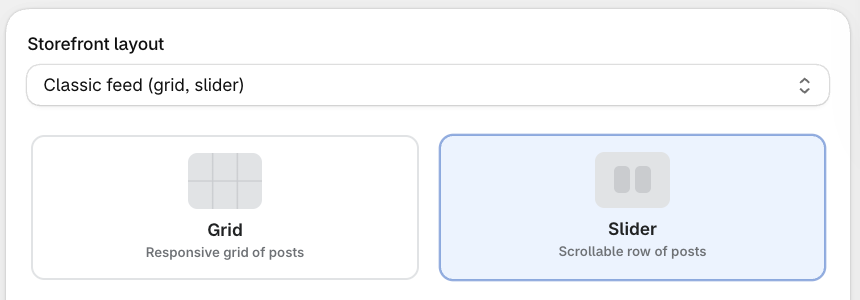
Slider
A scrollable row of posts, also known as a carousel. Posts sit side by side and visitors scroll horizontally through them. Slider works well when you want to show Instagram content without taking up much vertical space, such as between product sections or on landing pages.
Automated layouts
Automated layouts use recommended settings for conversion. You can still choose how many posts are visible on desktop and mobile. To configure the feed yourself, switch to manual layouts.
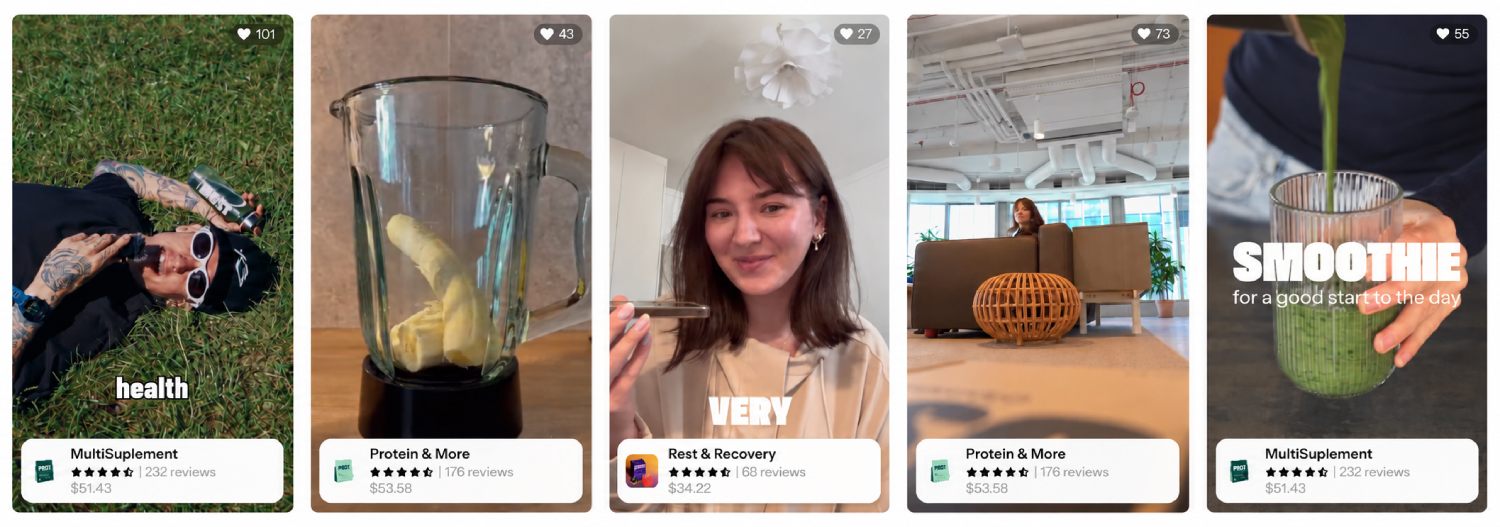
Shoppable strip
A horizontal row of posts built for conversion. When products are tagged on a post, a product card appears under it with the product information.
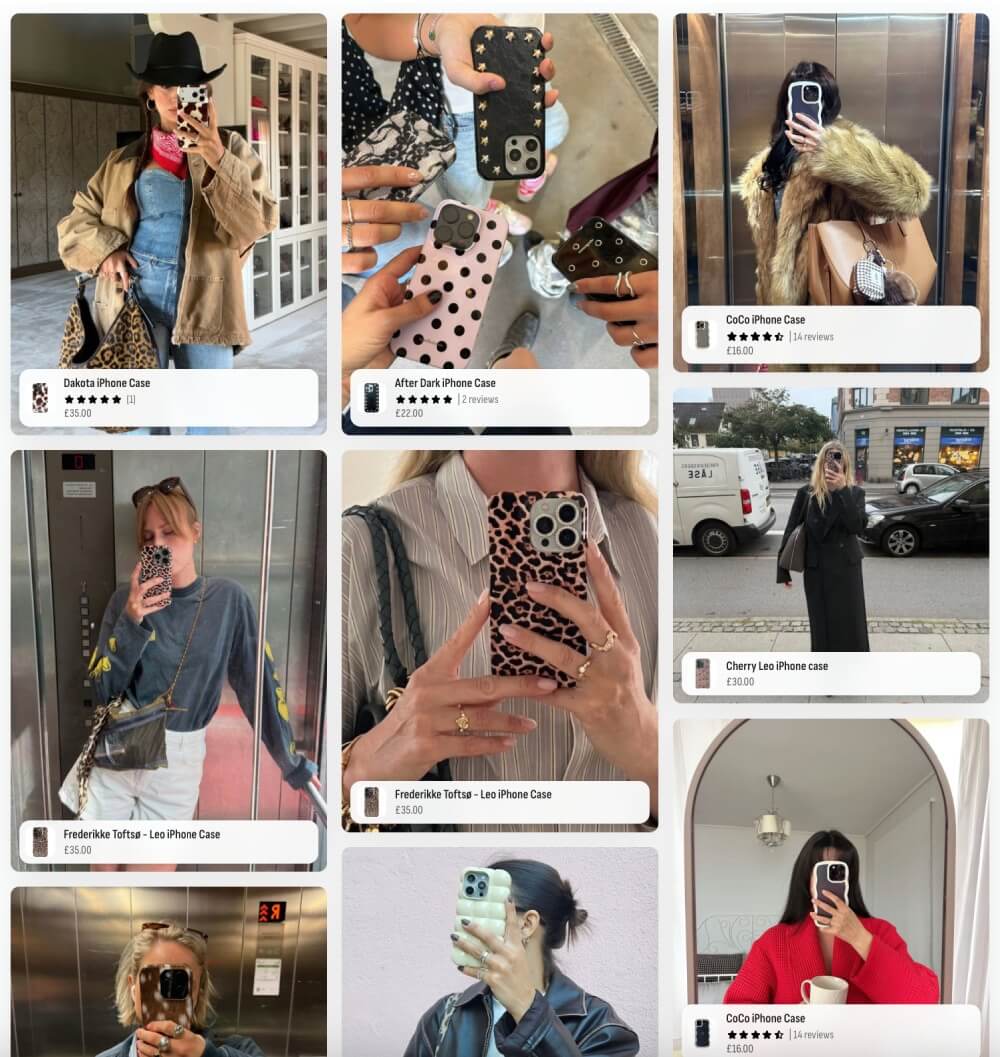
Masonry grid
Posts keep their own height and pack into a staggered grid. Tall photos sit next to shorter ones, so the feed reads as a collage.
Stories carousel
Posts appear as circles with a colored ring, in the style of Instagram stories. Visitors scroll sideways through the row.

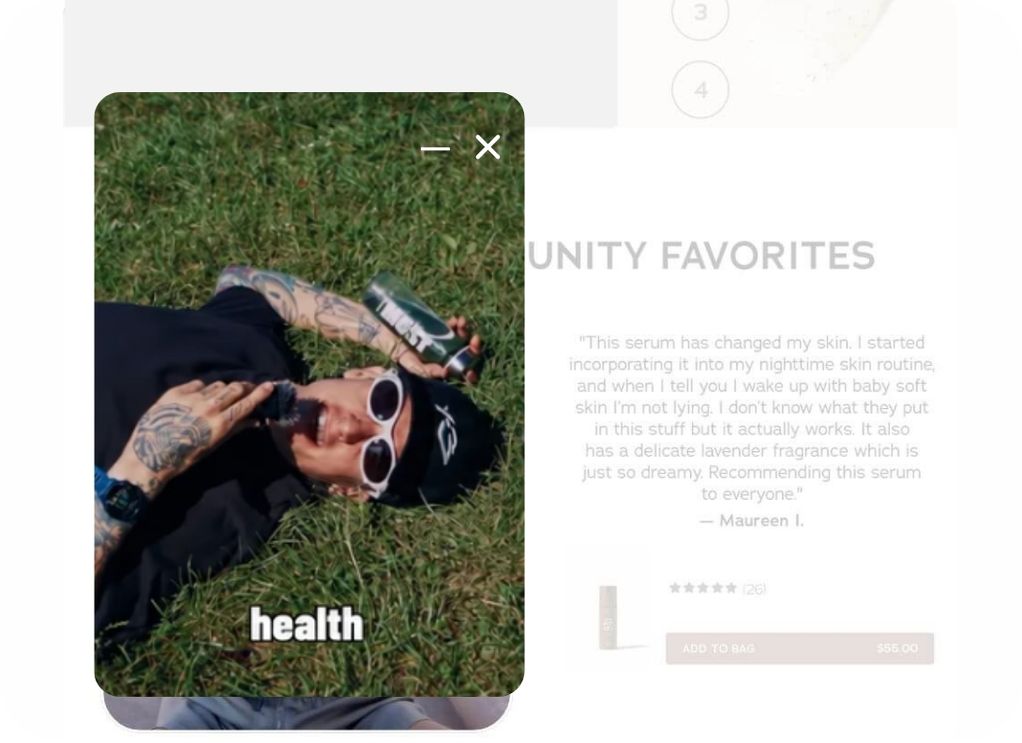
Floating post
One post in a small window on the page. It stays visible as visitors scroll, and they can minimize or dismiss it. Use it to highlight a single post or campaign without adding a full feed section.
Product photos float (beta)
On product pages, posts where that product is tagged appear as a small album floating in the bottom-right corner. The album shows the photos and how many there are. Clicking it opens the product photos in a popup.