This guide explains how to change the Instagram account connected to Mintt Instafeed with Meta for Business. Follow the steps below:
A. If your Instagram is linked to a page managed by the same Facebook profile
B. If your Instagram is linked to a page managed by another Facebook profile
A. If your Instagram is linked to a page managed by the same Facebook profile
- In your Shopify admin, go to Apps > Instafeed.
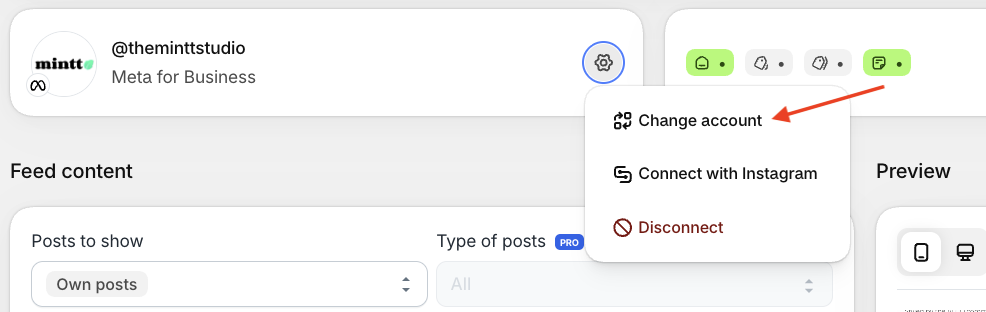
- Next to your Instagram username, click the gear icon.
- Click 'Change account'.
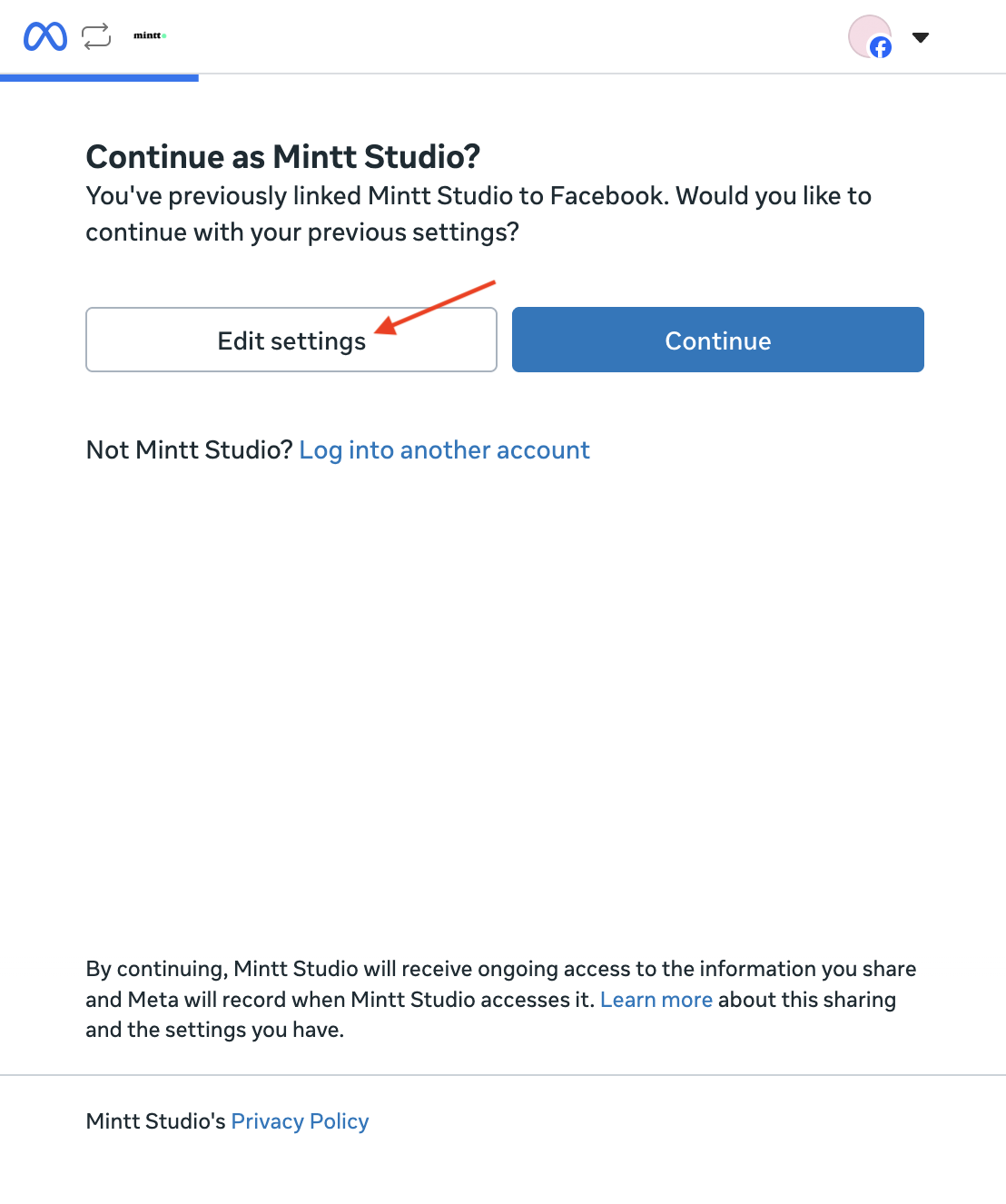
- In the pop-up, click Edit settings.
- In the next steps, select the Facebook page, business and Instagram account you want to connect.
For detailed instructions on navigating these screens, read our step-by-step guide.
B. If your Instagram is linked to a page managed by another Facebook profile
- In your Shopify admin, go to Apps > Instafeed.
- Next to your Instagram username, click the gear icon.
- Click 'Change account'.
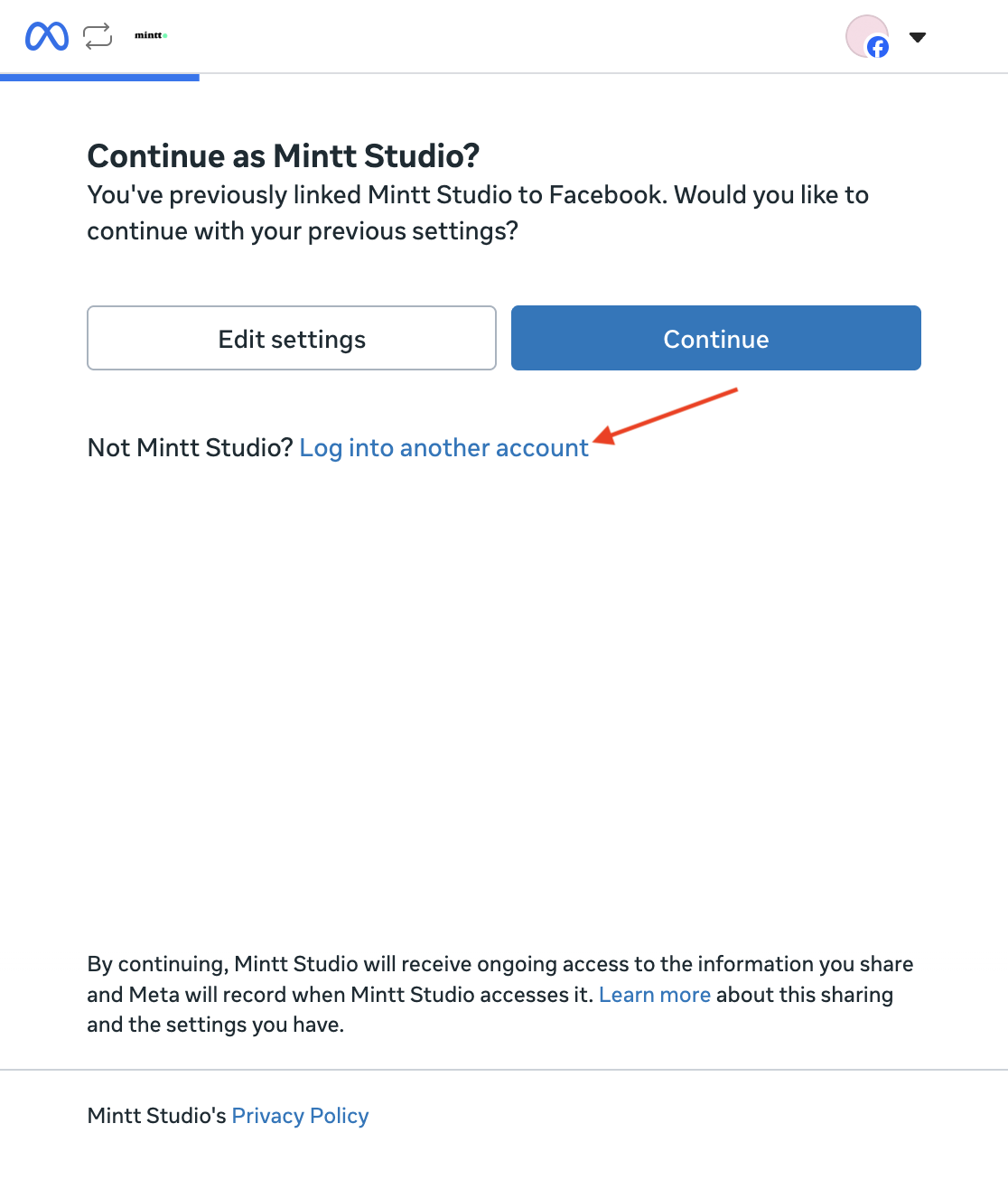
- In the pop-up, click Log into another account.
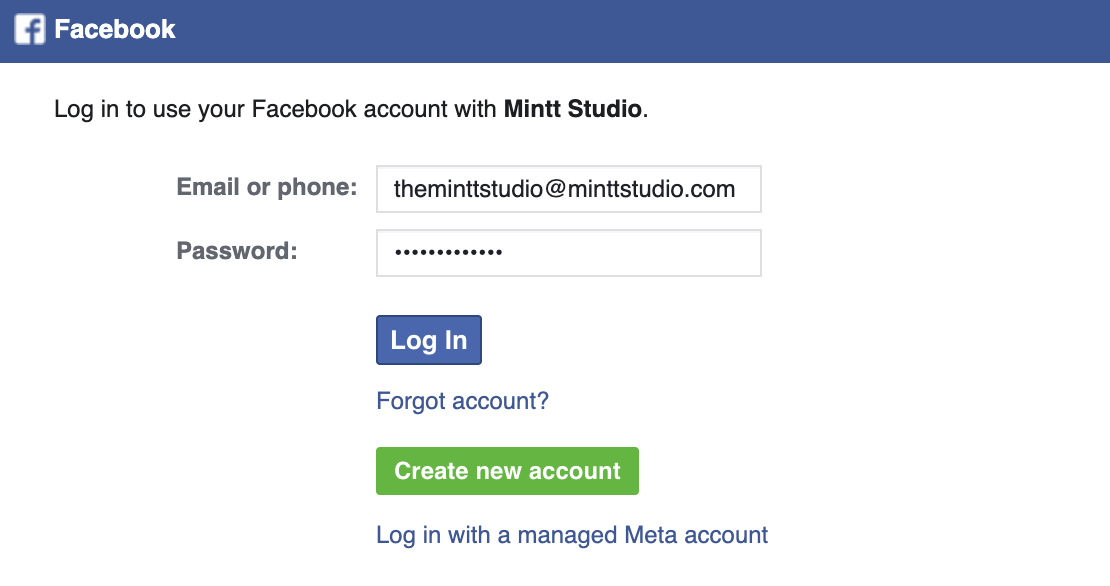
- Enter the login details of the personal Facebook profile that manages the account you want to connect, then click Log in.
- Click Continue.
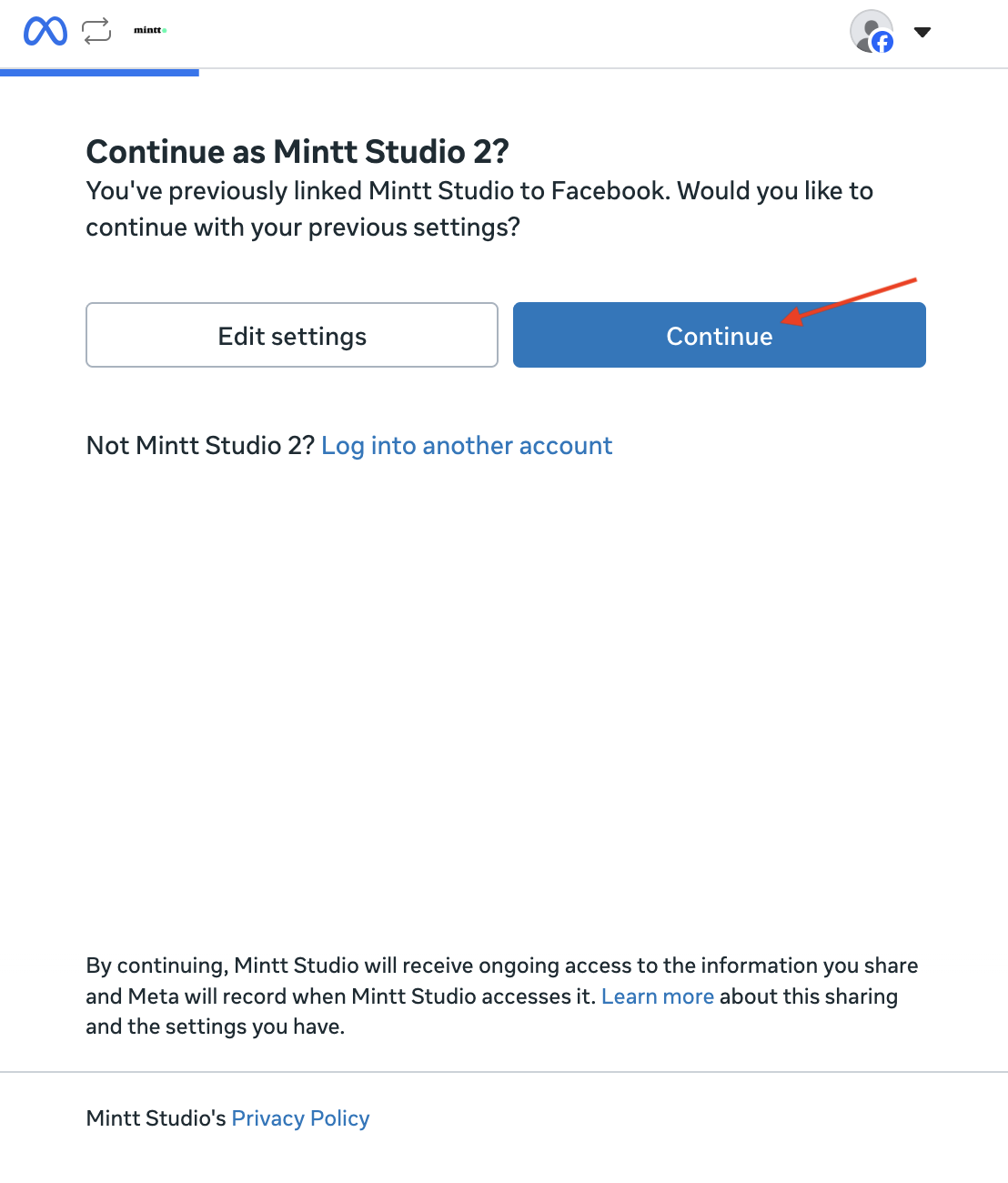
- In the next steps, select the Facebook page, business and Instagram account you want to connect.
For detailed instructions on navigating these screens, read our step-by-step guide.