With our Pro plan, you can add 3 feeds to your store, while Plus allows you to add unlimited feeds.
To add a secondary feed instead of your main feed to your legacy theme, follow the steps below:
Step 1 - Copy the feed ID
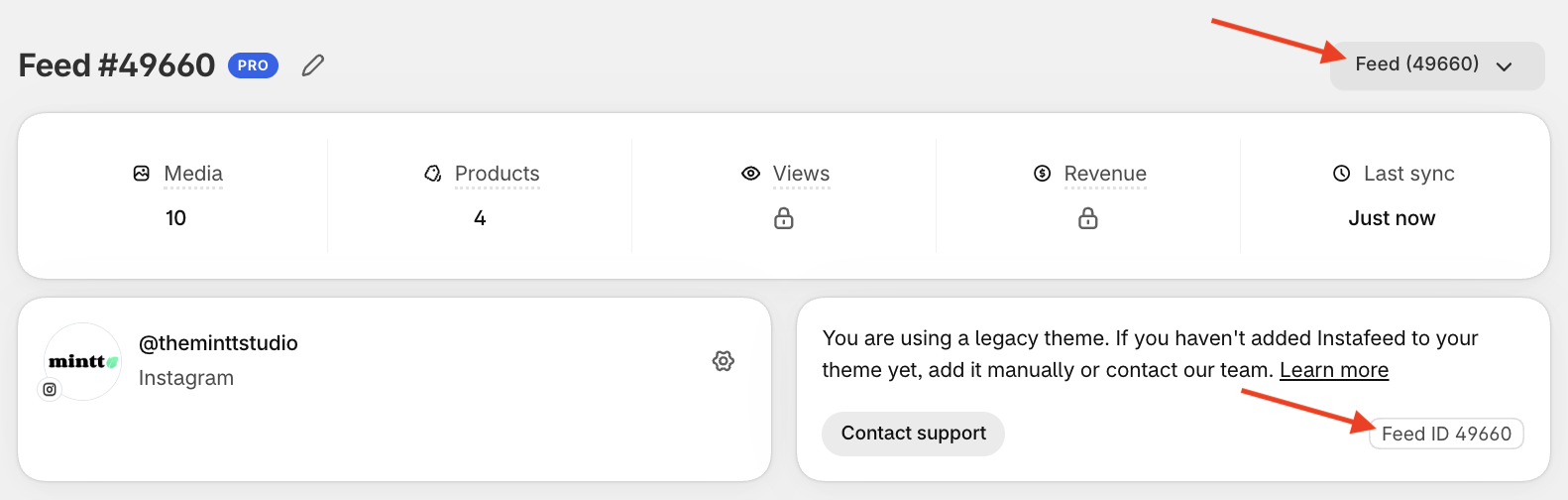
- Go to Shopify > Apps > Instafeed and select a secondary feed.
- Copy the ID of the new feed.
Step 2 - Add the feed to your legacy theme
- Go to Online store > Themes > Customize > Add section.
- Select Custom Content (Liquid/HTML) and add it to your page.
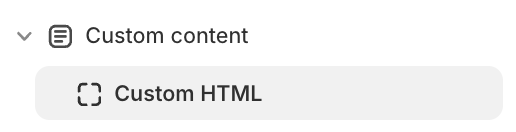
- Paste the code below into the HTML field.
<div id="feed-[FEED ID]" class="instafeed-shopify"></div>
In the code, replace [FEED ID] with the Feed ID copied.
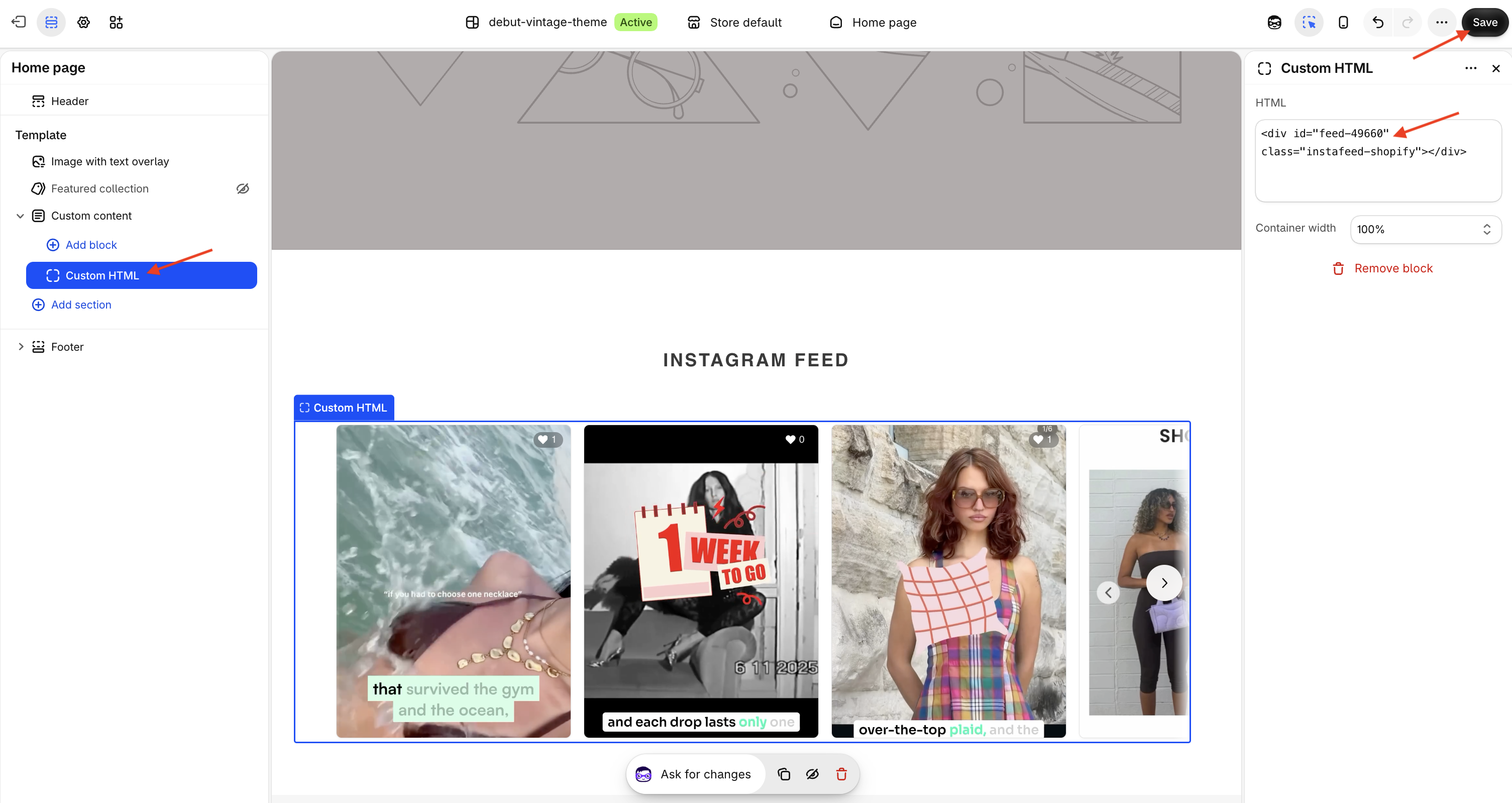
For example, for the feed ID #49660, the code will be:
<div id="feed-49660" class="instafeed-shopify"></div>Turn on the Mintt Instafeed app embed. In the theme editor, open App embeds and switch Instafeed on. Pasted HTML does not load the feed by itself.
To add more secondary feeds, repeat the steps above.
Common questions
- How can I add feeds from different Instagram accounts?
Read our guide for more details on how to add multiple feeds from different Instagram accounts.