Important: To connect with Meta for Business, your Instagram account must be linked to a Facebook page. If you don't have that, please follow this guide.
Follow these steps to connect your Instagram account to Mintt Instafeed using Meta for Business:
Step 1 - Connect your account with Meta for Business
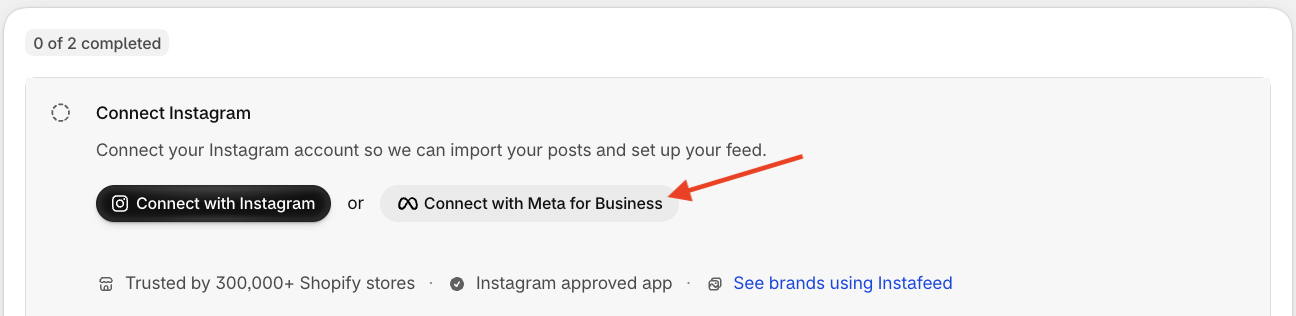
- Go to Shopify > Apps > Instafeed.
- Click Connect with Meta for Business.
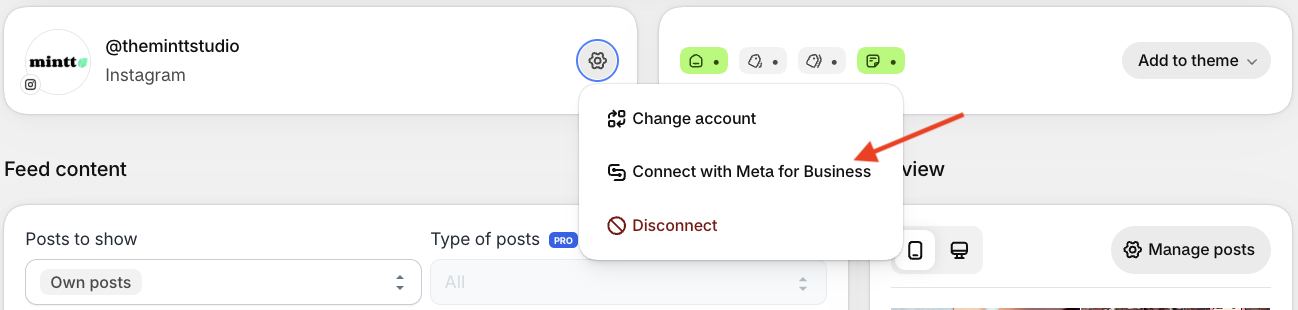
If your account was previously connected with Instagram:
- Next to your Instagram username, click the gear icon.
- Click 'Connect with Meta for Business'.
Step 2 - Grant permissions to your account
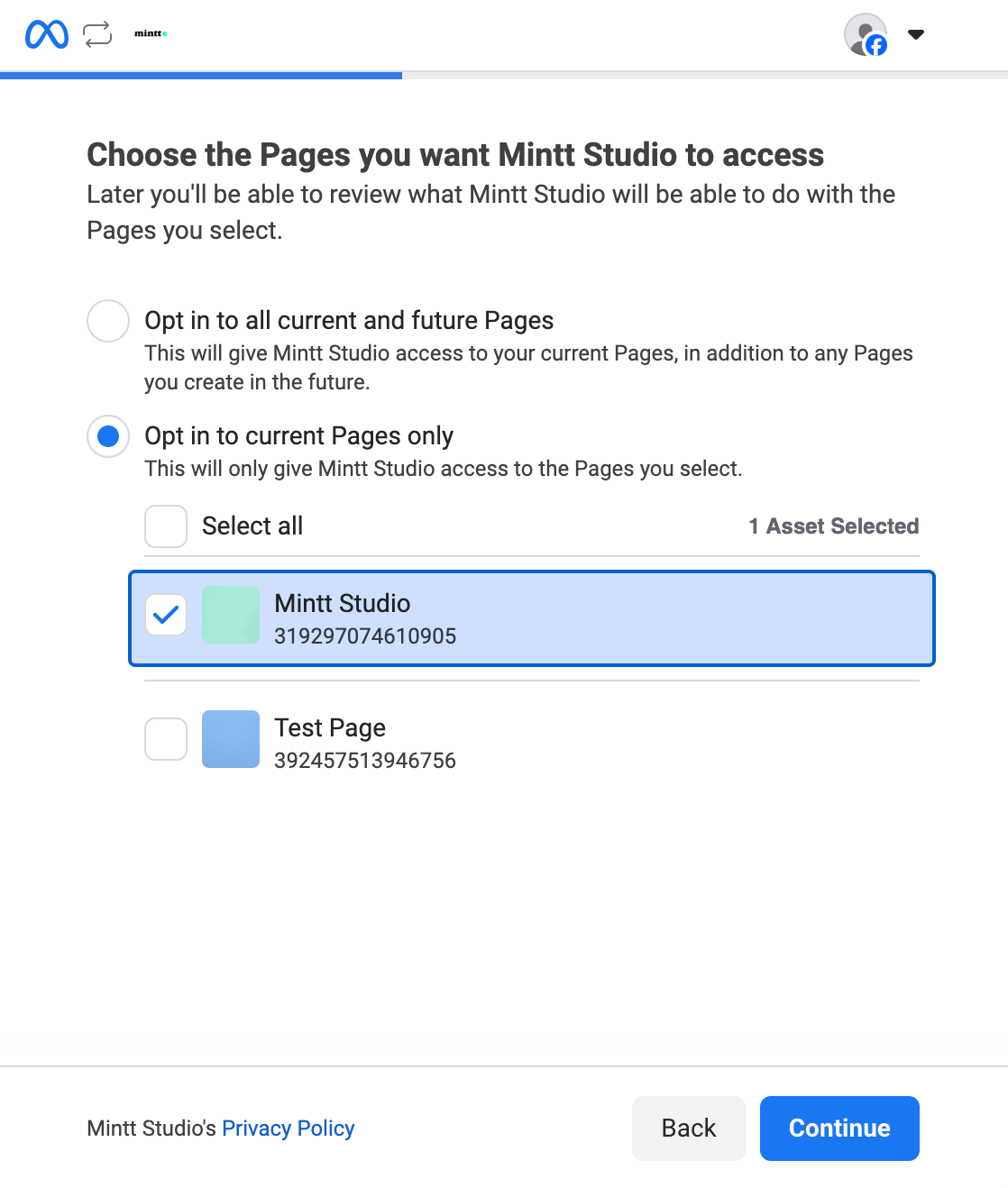
- Choose the Facebook page linked to the Instagram account you want to display in your feed.
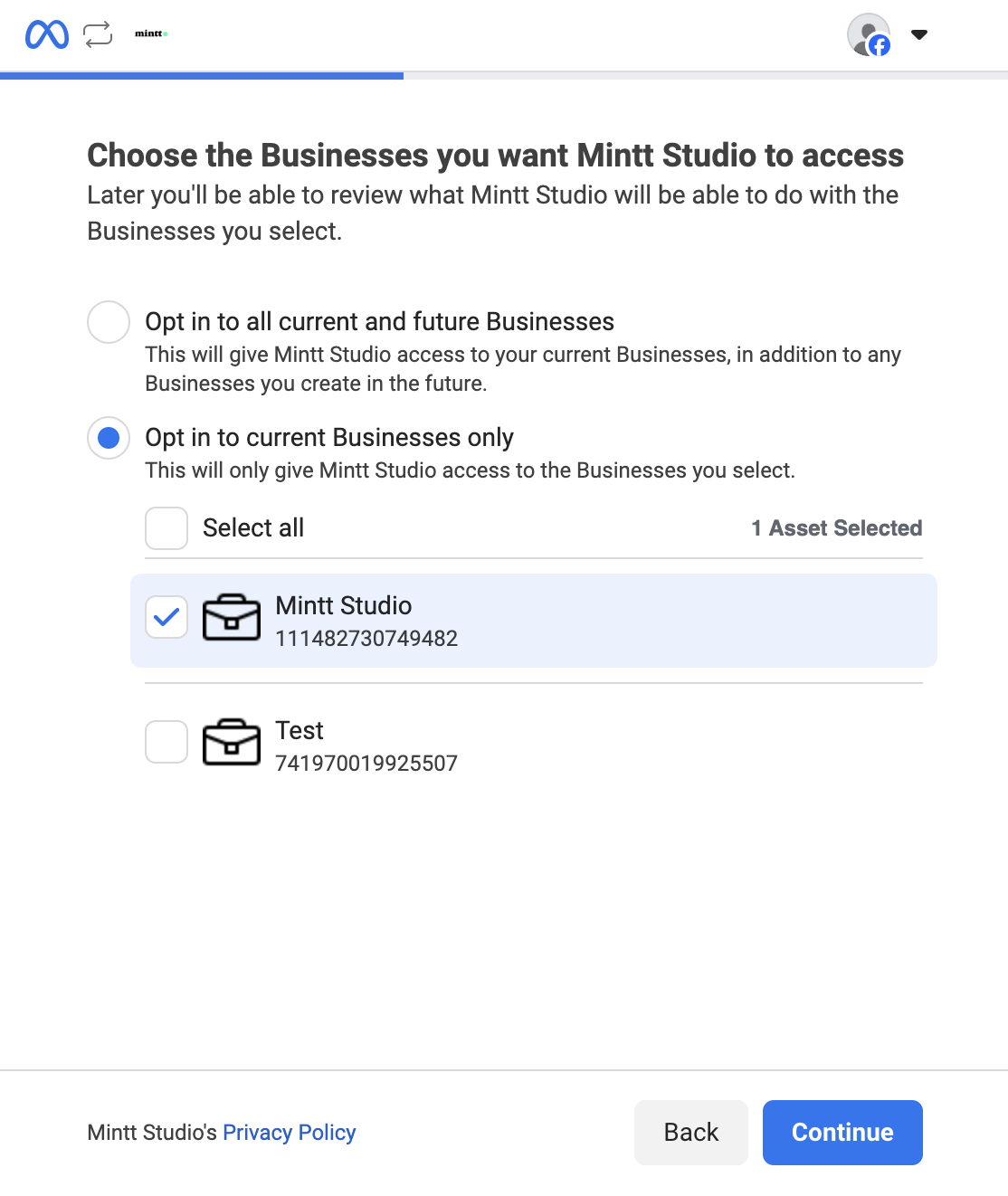
- Select the Businesses that manage your Instagram account.
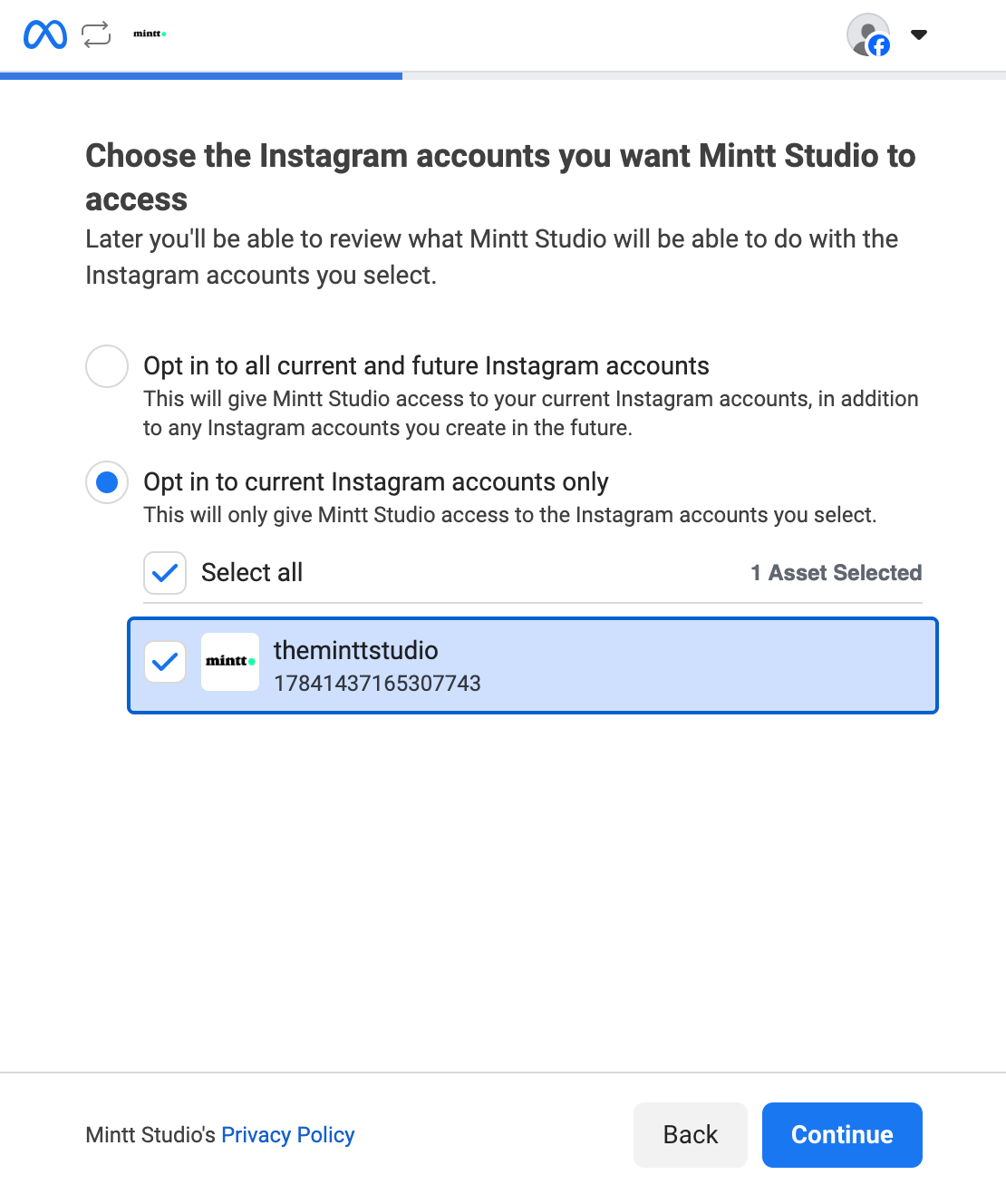
- Choose the Instagram account you want to connect.
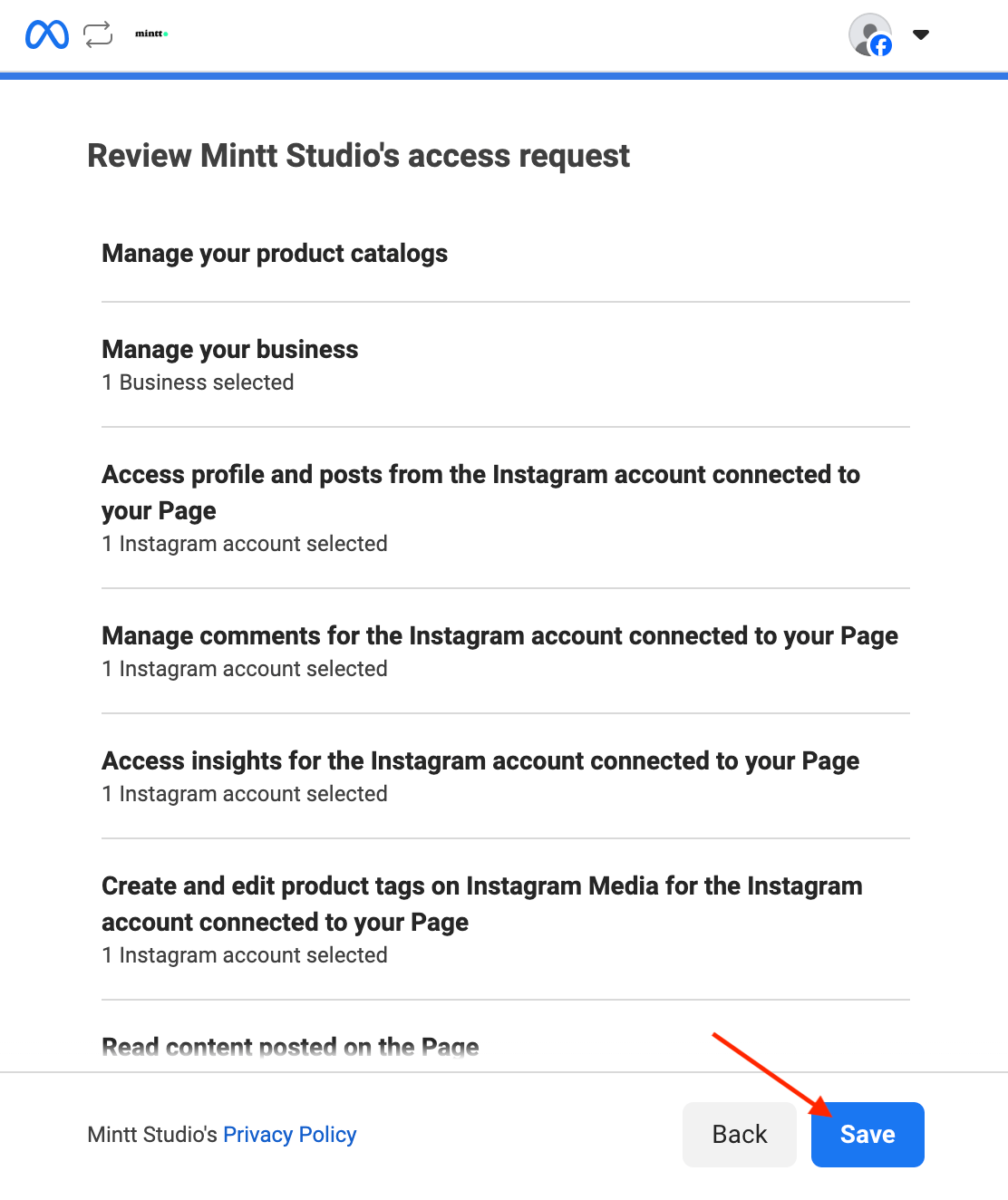
- Review the permissions and save changes.
- Click Connect this account to complete the connection.
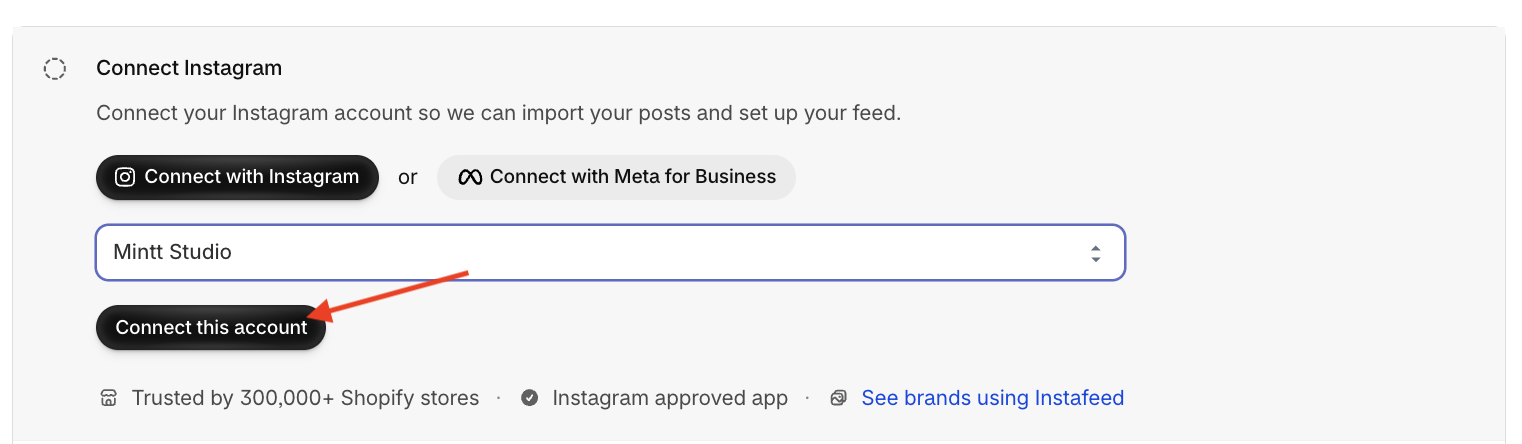
Your Instagram account will show as connected through Meta for Business.
