With our Pro plan, you can add 3 feeds to your store, while Plus allows you to add unlimited feeds.
To show multiple Instagram feeds on your store, follow these steps:
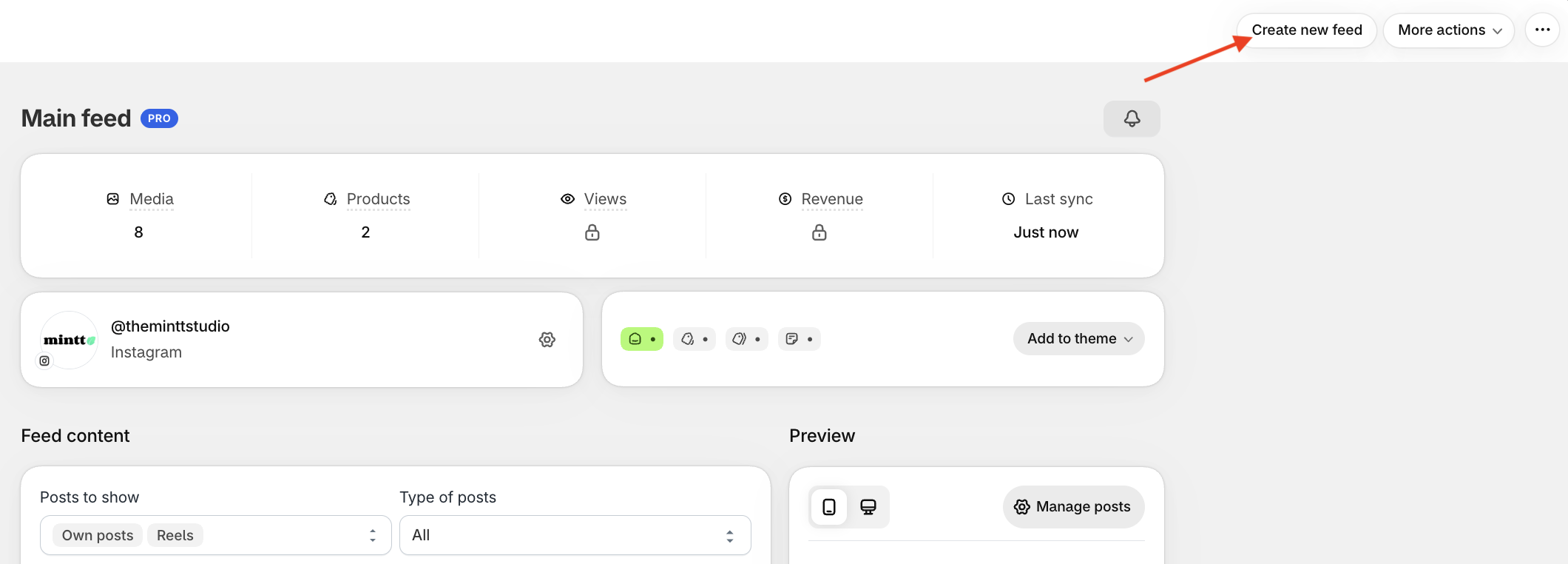
Step 1 - Create a new feed
- Go to Shopify > Apps > Instafeed and click Create new feed.
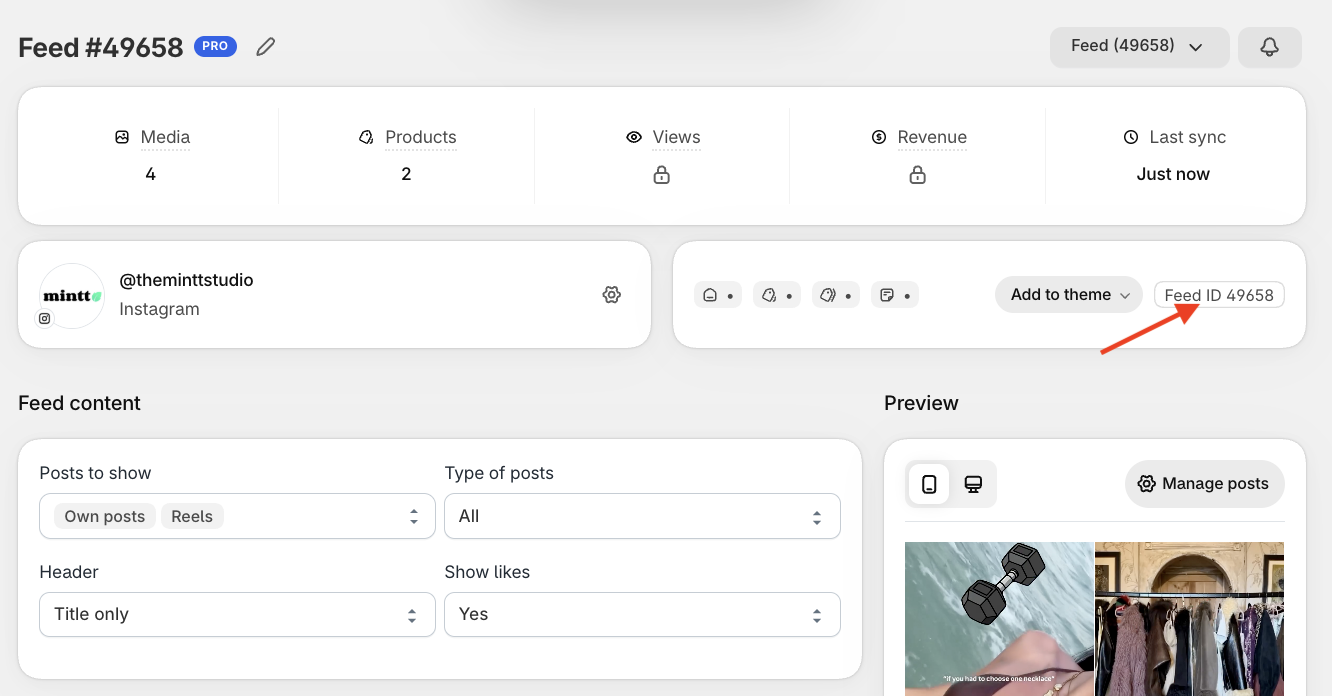
- Copy the ID of the new feed.
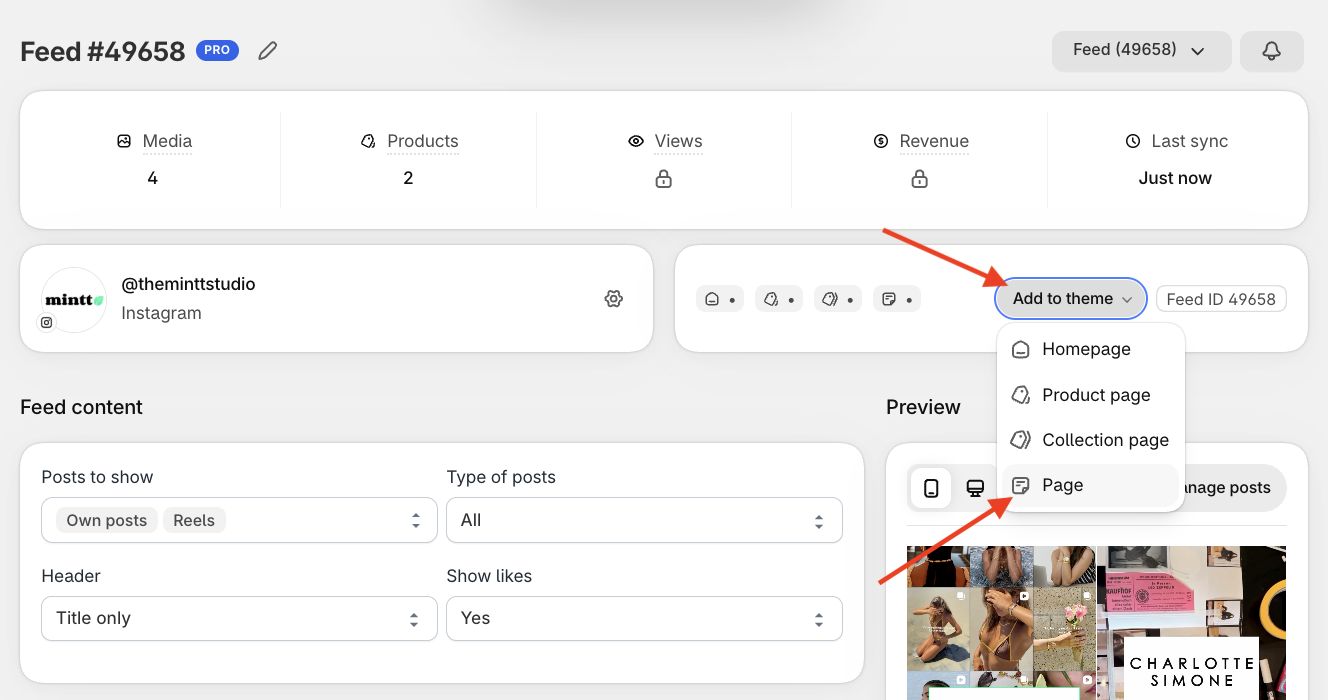
Step 2 - Add the feed to your theme
- Click Add to theme.
- Select the page where you want to add your feed.
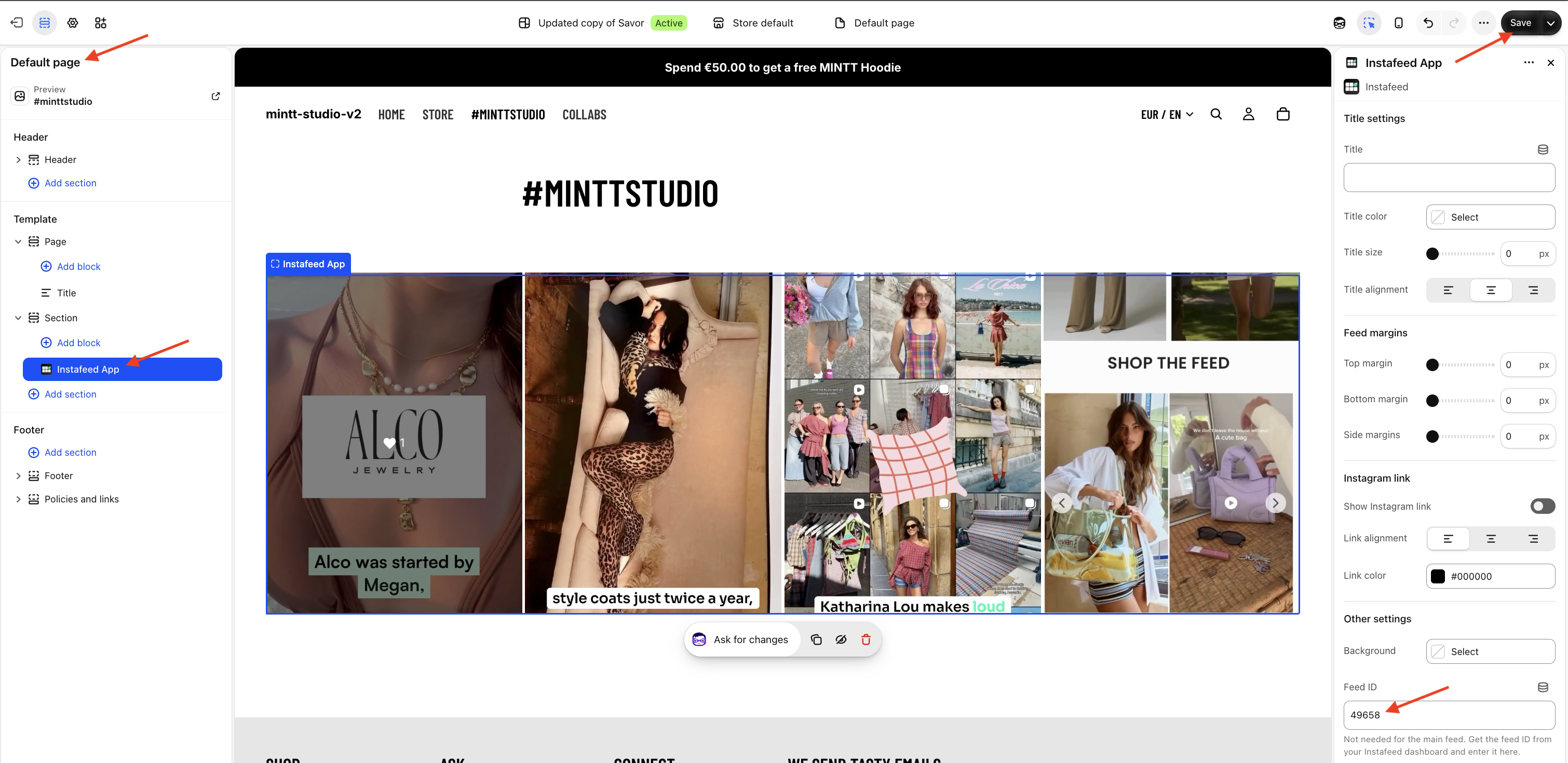
- Once the section is added, paste the feed ID in the Feed ID field within the Mintt Instafeed section.
- Press Save.
To add more secondary feeds, repeat the steps above.
Common questions
- How can I add feeds from different Instagram accounts?
Read our guide for more details on how to add multiple feeds from different Instagram accounts.
.
- I'm using a legacy theme, how can I add multiple feeds to my store?
Read our guide for instructions on how to add multiple feeds to a legacy theme.