This guide outlines how to add your feed to a different page other than the homepage on:
A. Shopify 2.0 Themes
If you are using a Shopify 2.0 theme, you can add the Mintt Instafeed app as a section anywhere on your store. Simply follow these steps:
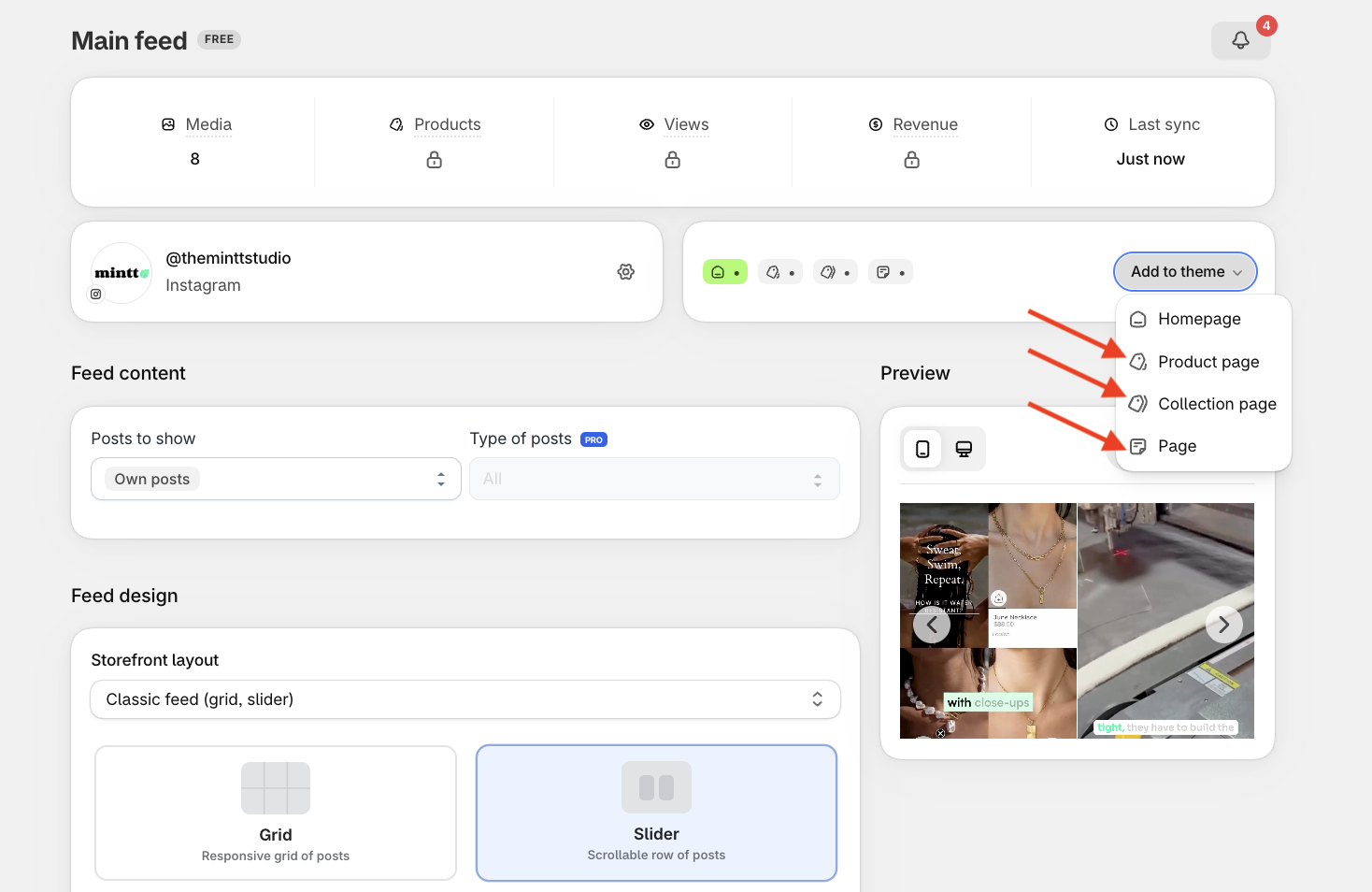
- Go to Shopify > Apps > Instafeed.
- Click Add to theme.
- Select the page where you want to show your feed.
- Once the section is added, click Save to apply changes to your theme.
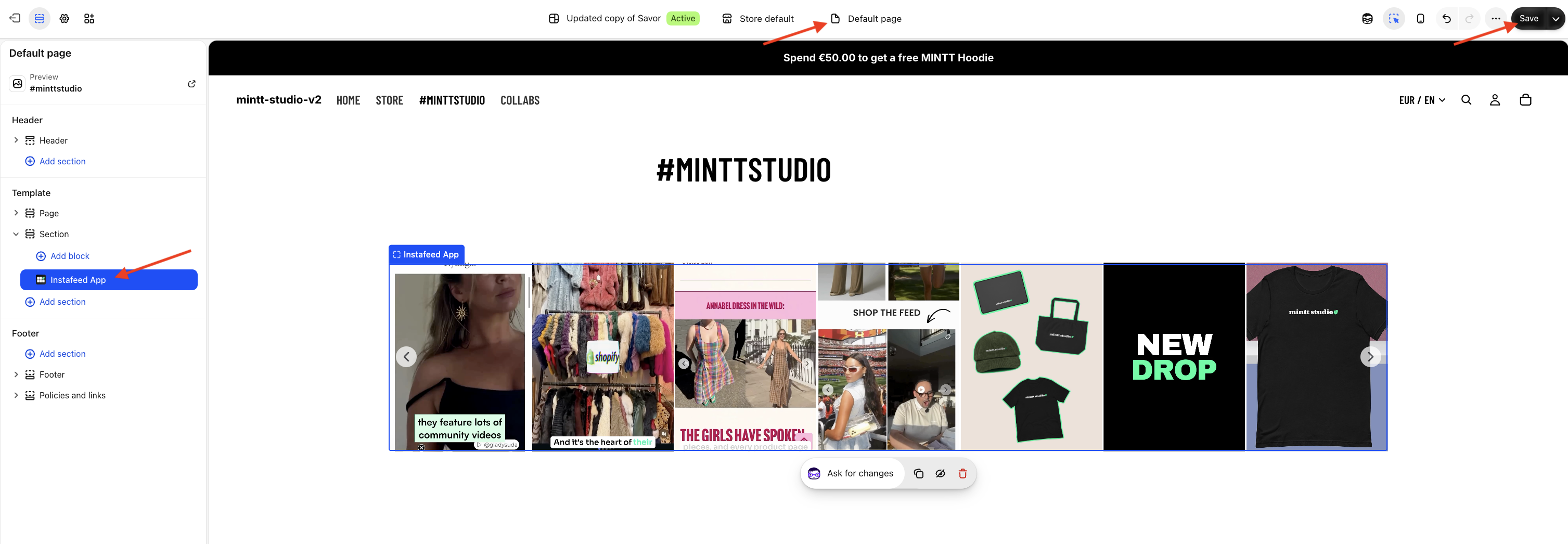
This method adds Mintt Instafeed to all pages of the default template. To add Mintt Instafeed to a specific page within a template, use the method described below.
Watch a step-by-step video tutorial
B. Legacy Themes
If you are using a legacy theme, follow the instructions below:
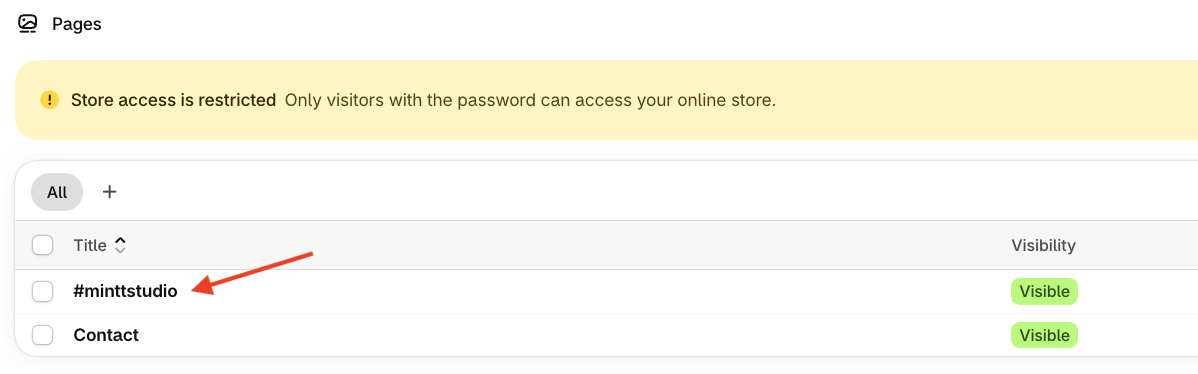
- Go to Shopify > Online Store > Pages.
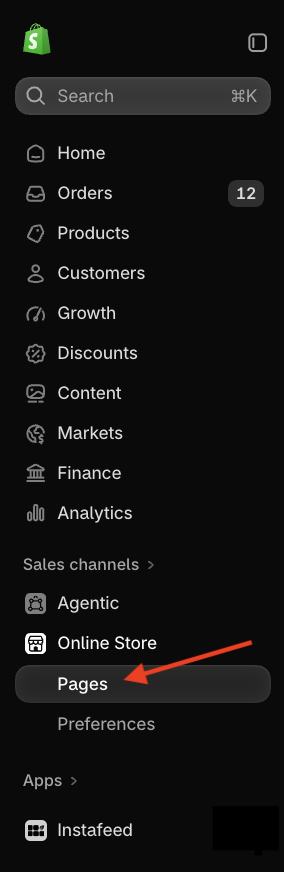
- Select the page where you want to show your feed.
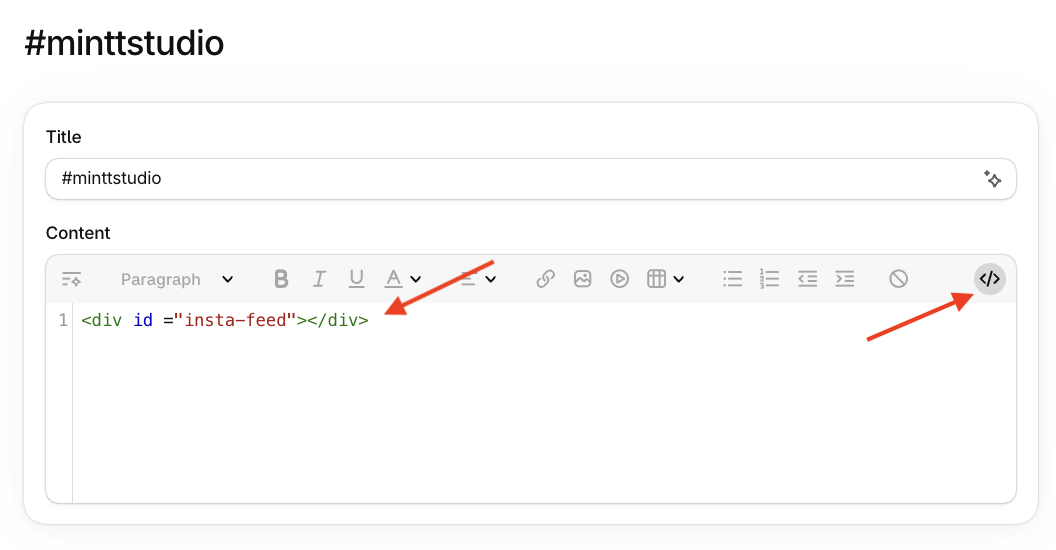
- Click on the code button [<>] and paste the following code:
<div id="insta-feed"></div>
- Click Save.
- Turn on the Mintt Instafeed app embed. In the theme editor, open App embeds and switch Instafeed on. Pasted HTML does not load the feed by itself.