Product & collection tagging is available in our Pro and Plus plans.
This guide walks you though the steps to manually tag products & collections in the Mintt Instafeed app, creating shoppable feeds.
Step 1 - Open Manage posts
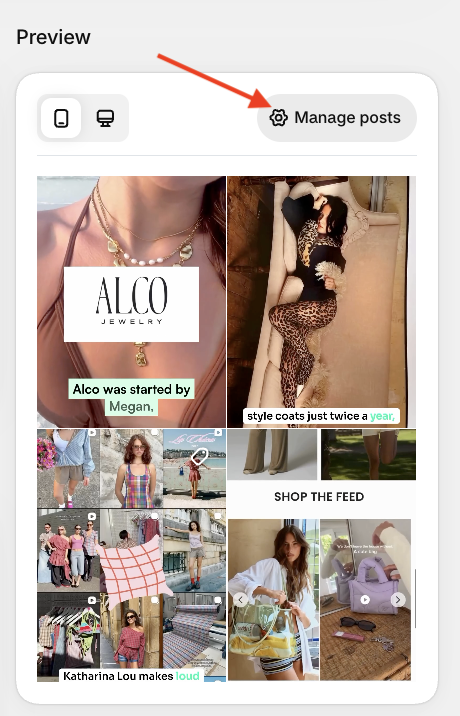
- In your Shopify admin, go to Apps > Instafeed.
- Under Preview, click Manage posts.
Step 2 - Open the tag view
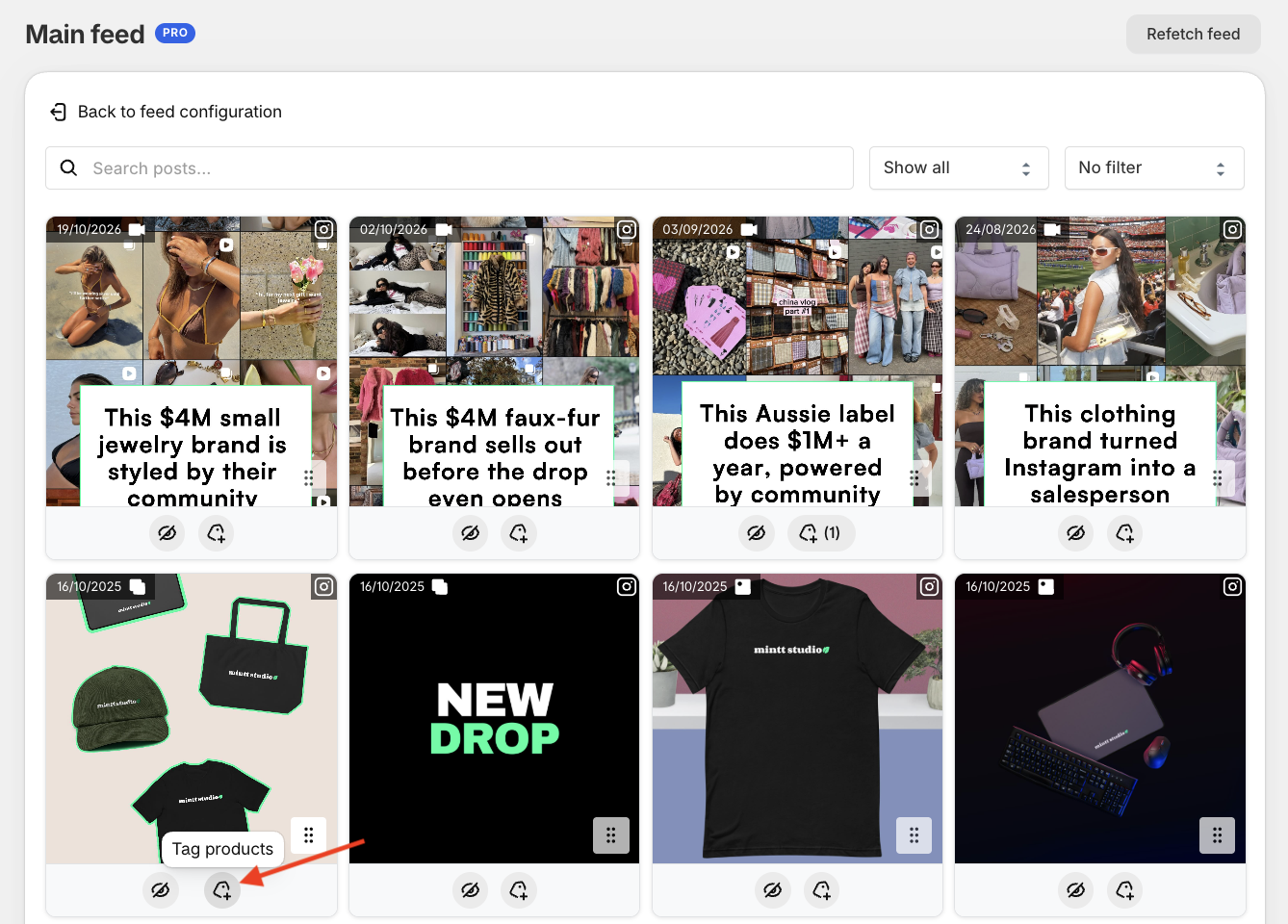
- For each post you want to tag, click Tag products to open the tag pop-up.
Step 3 - Tag products & collections
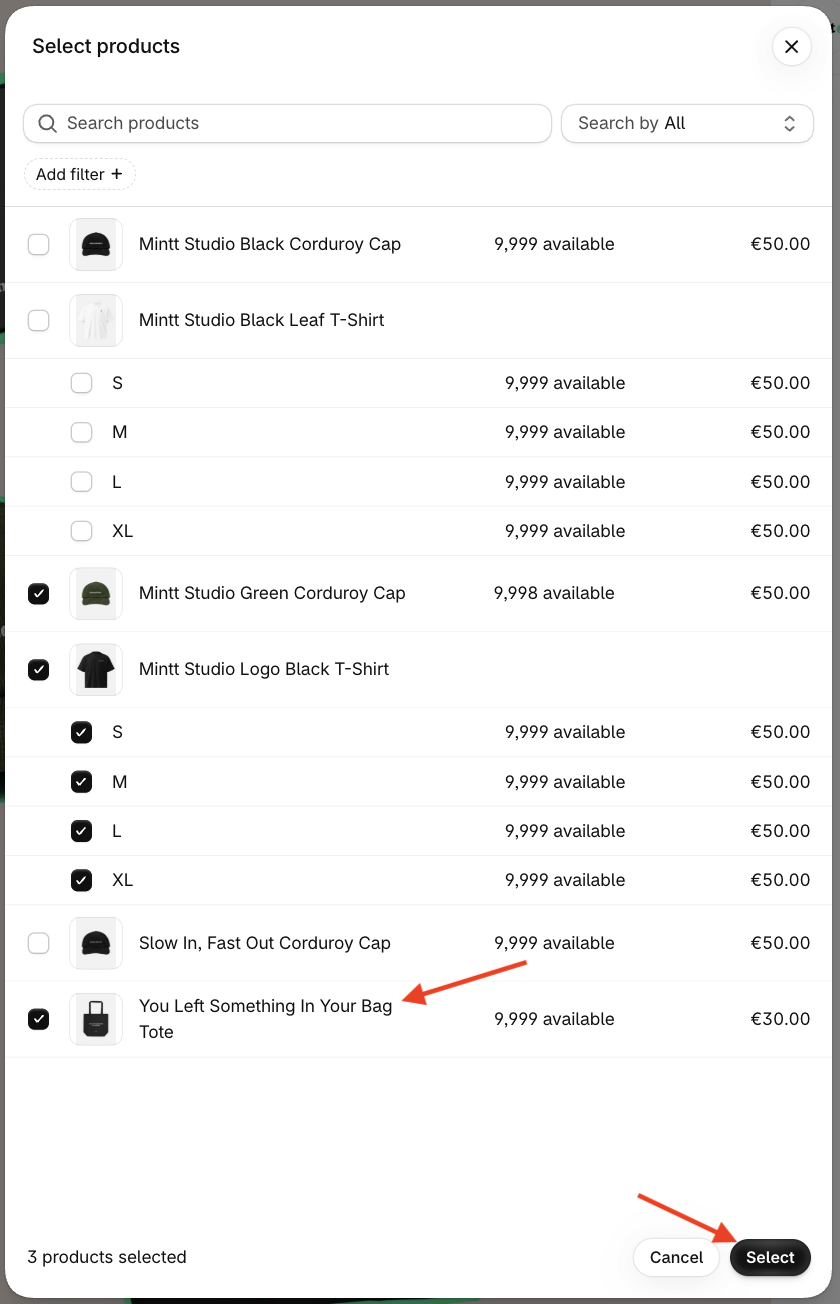
- Click Tag products to tag products, or Tag collections to tag collections.
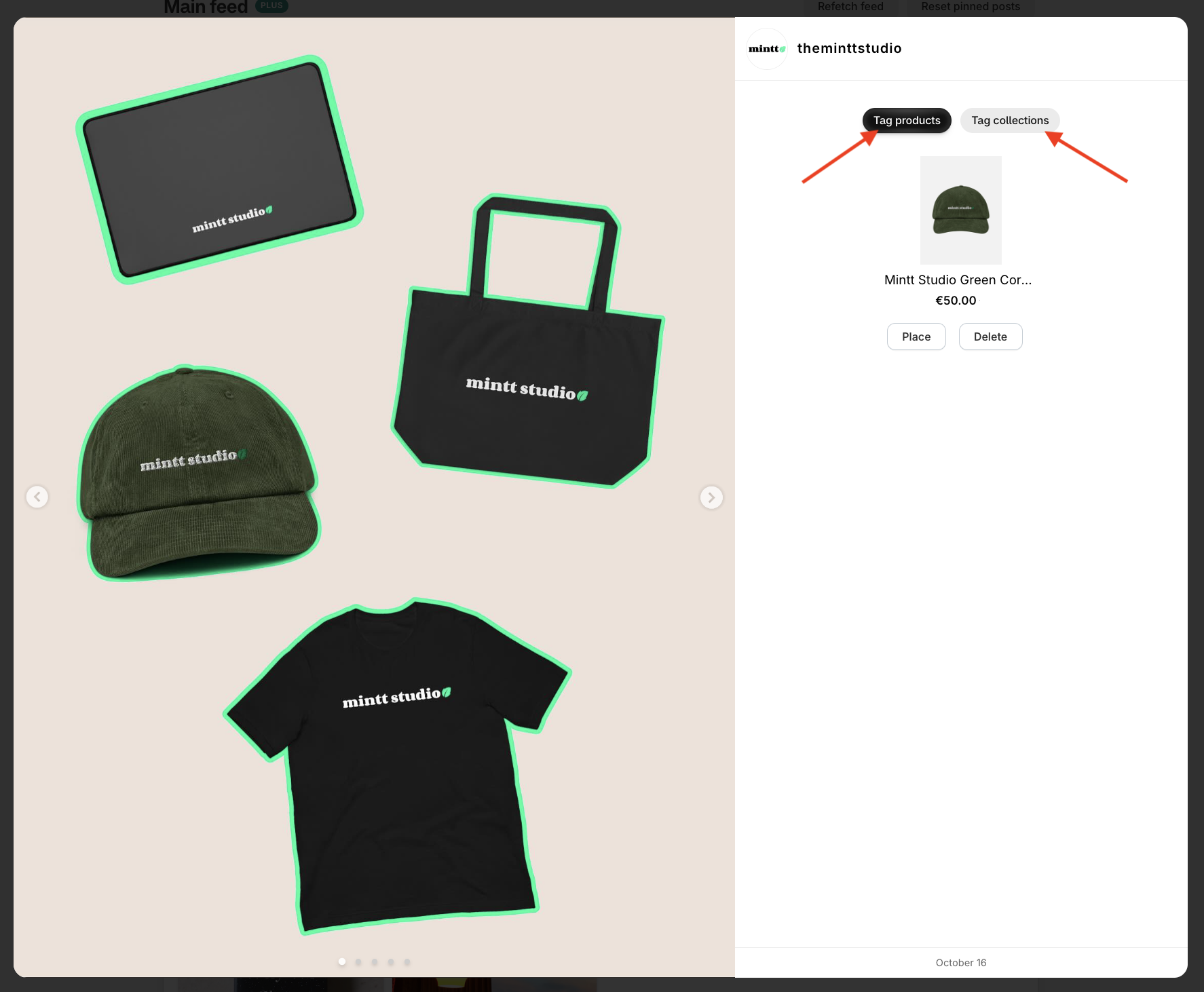
- Choose the products and/or collections you want to tag, then click Select.
Step 4 - Place the tag on the item
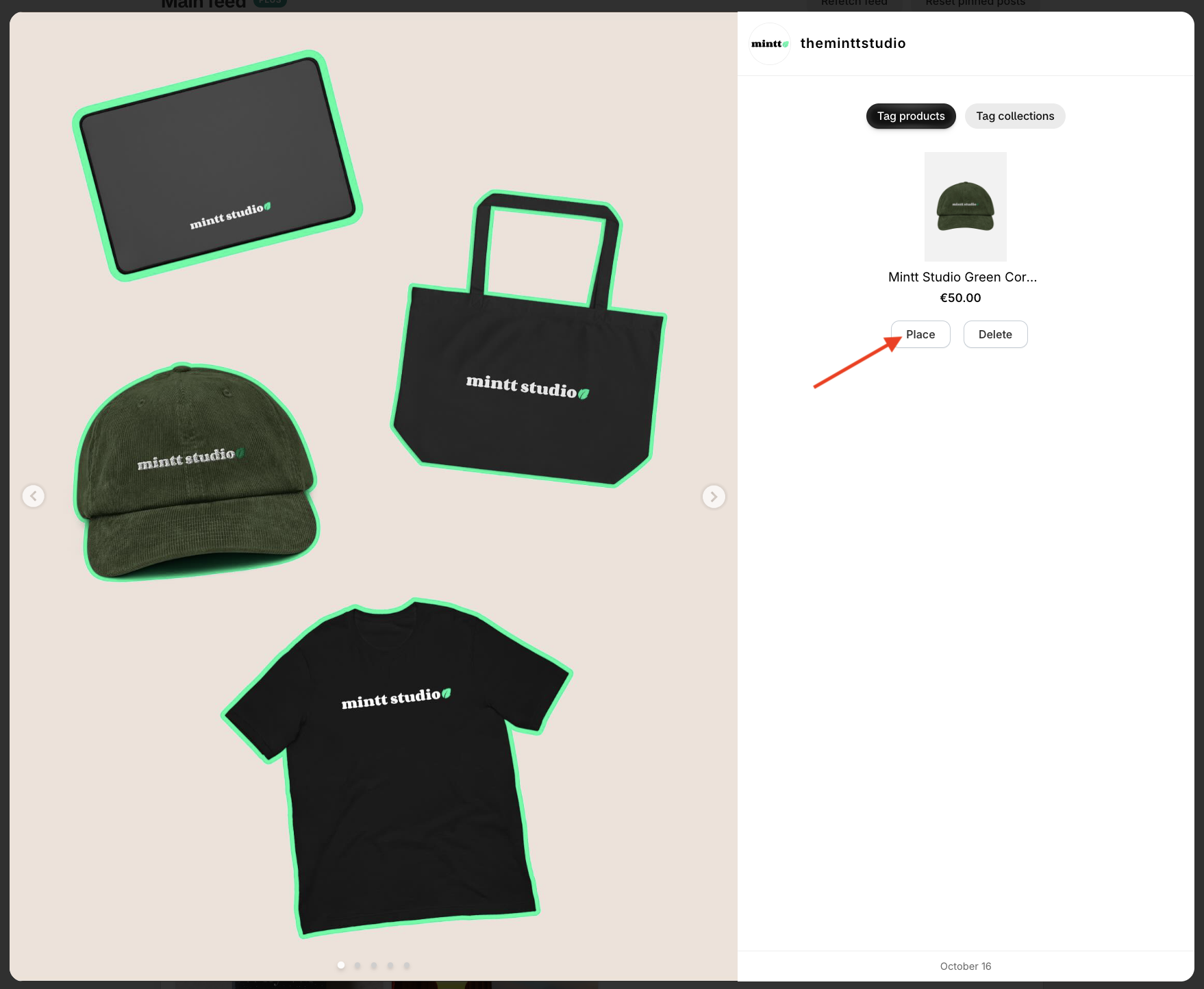
After you tag a product or collection, you can place the tag exactly on that item in the post.
- Click Place.
- Click the item in the photo. The tag appears on that spot.
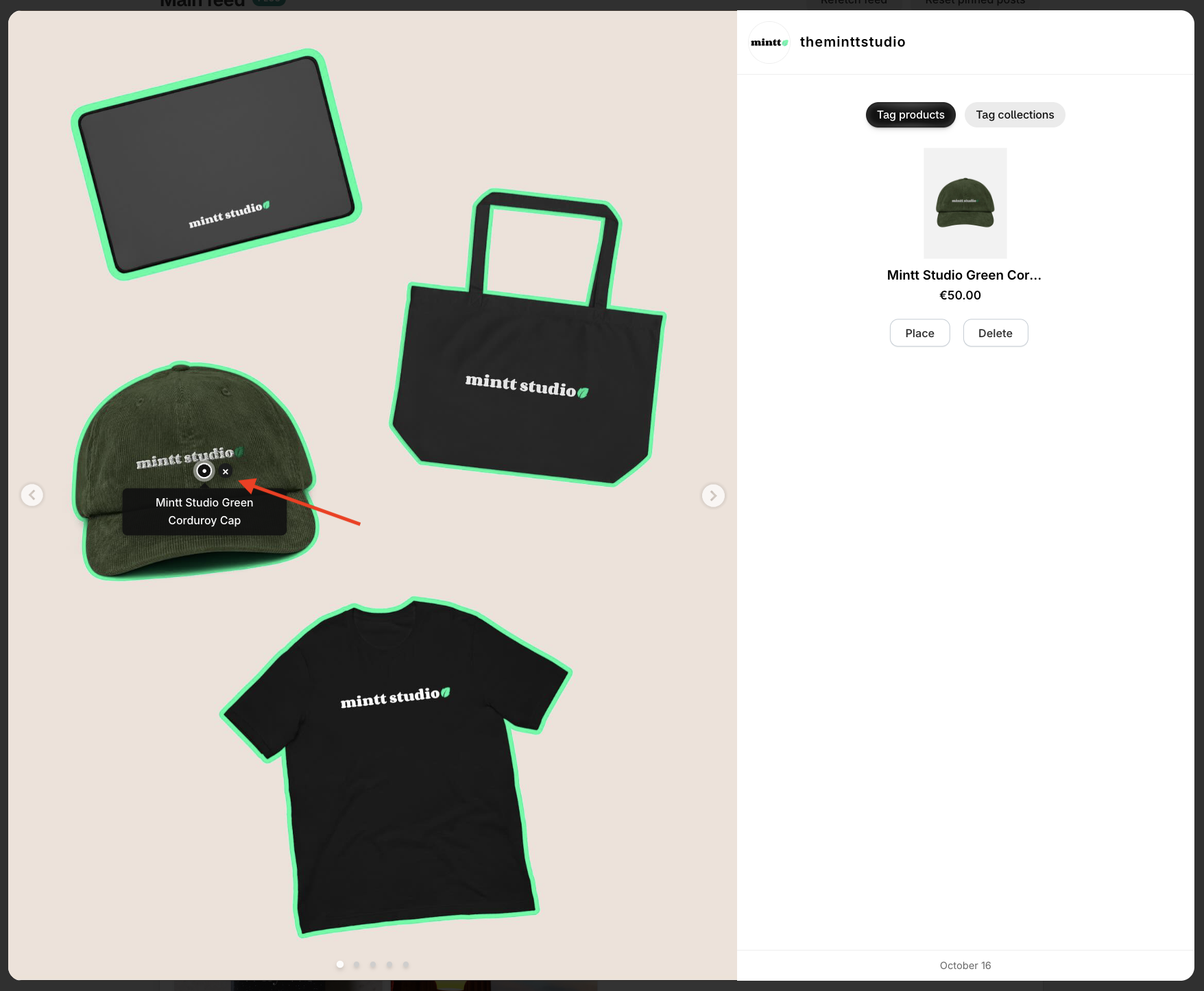
- Repeat this process for each post you want to make shoppable.
Step 5 - Return to feed configuration page
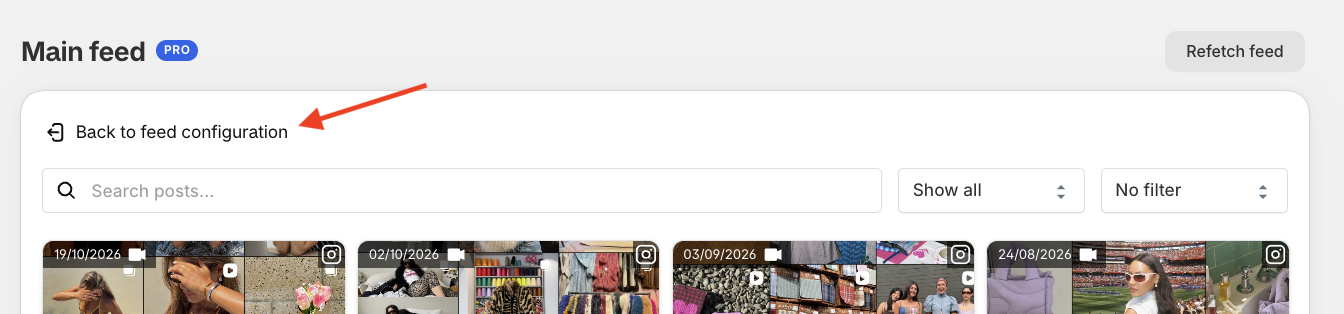
- When you're finished, click Back to feed configuration to return to the Mintt Instafeed configuration page.